Fire TV & Firestick Setup Guide
Follow these steps to install KGTV on your Amazon Fire TV or Firestick. The whole process takes about 5 minutes.
1
Enable Developer Options
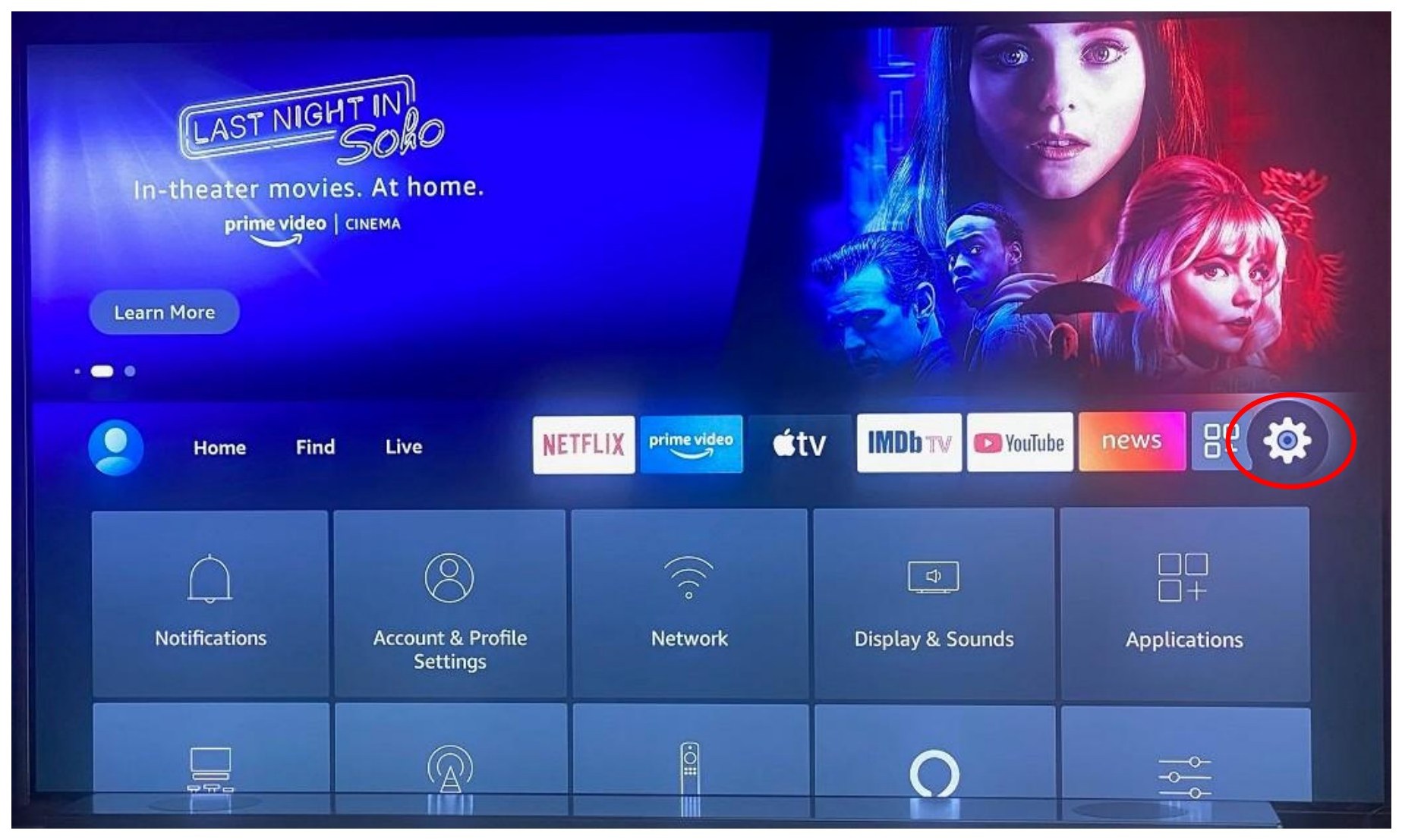
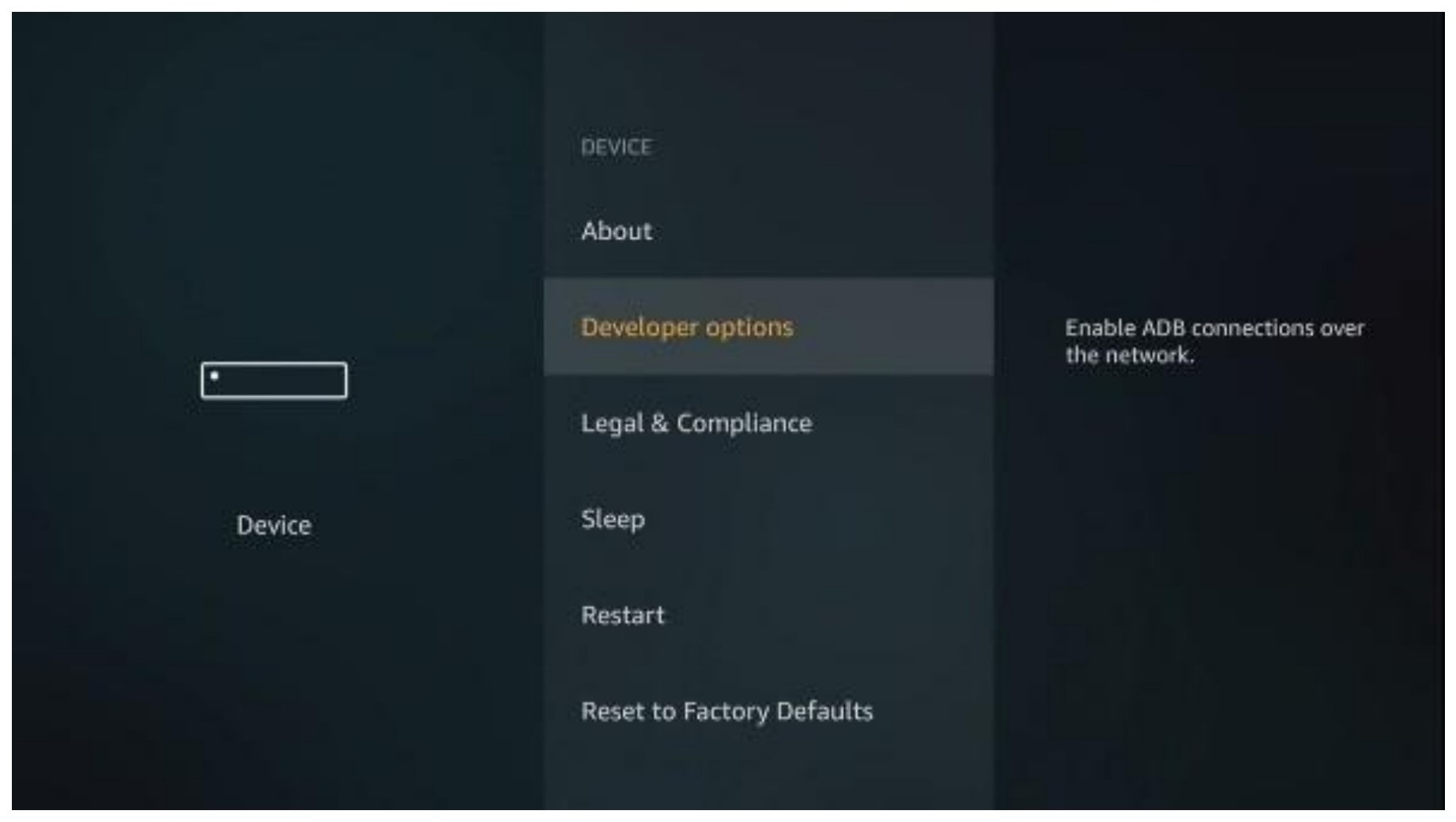
- From the Fire TV home screen, open Settings (gear icon at the top).
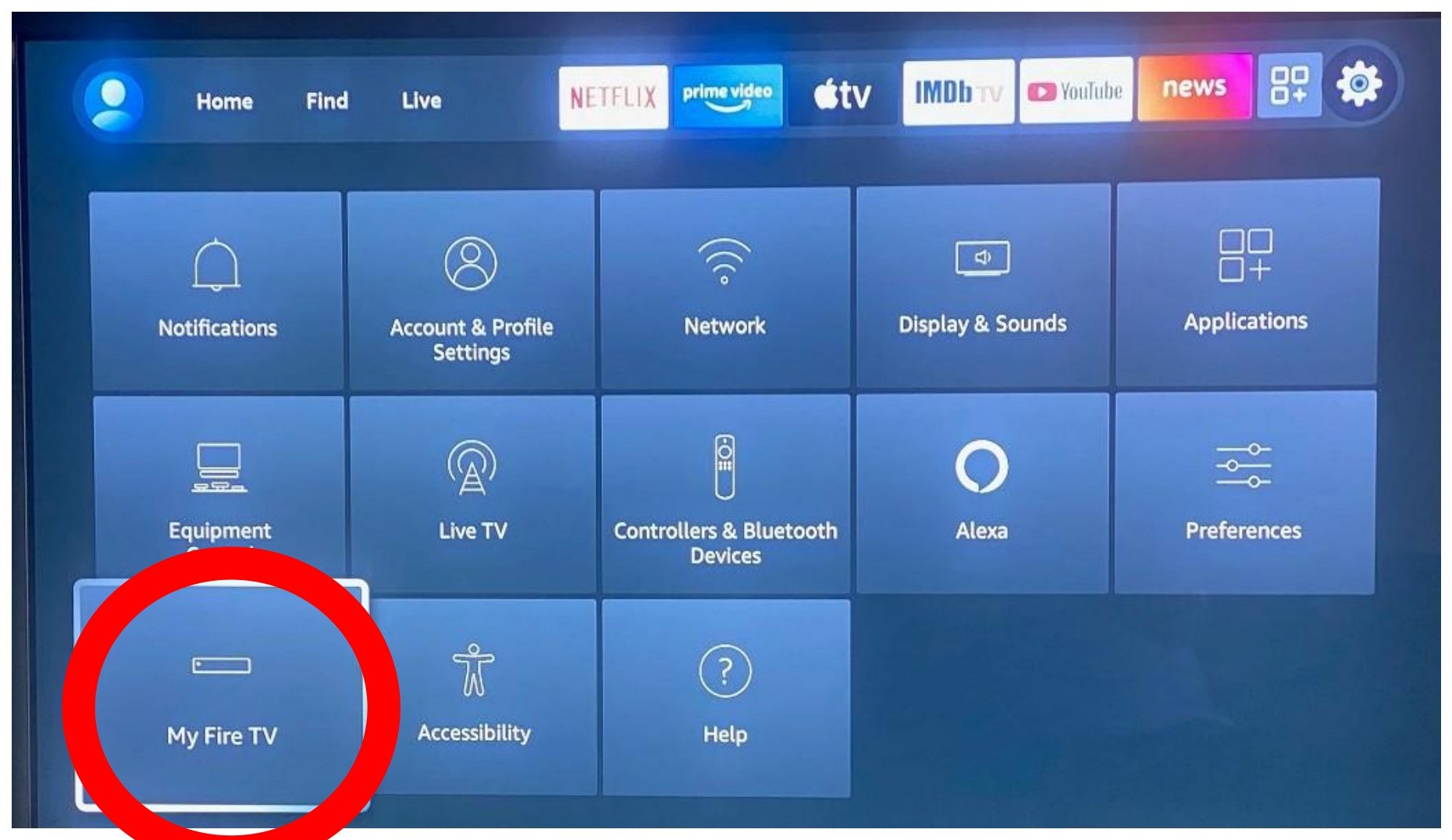
- Select My Fire TV.
- If you do not see "Developer Options", select About and press the Select button on your remote 7 times. Developer Options will then appear.
On some Fire TV models the menu is called Device & Software instead of My Fire TV.
2
Turn On Required Settings
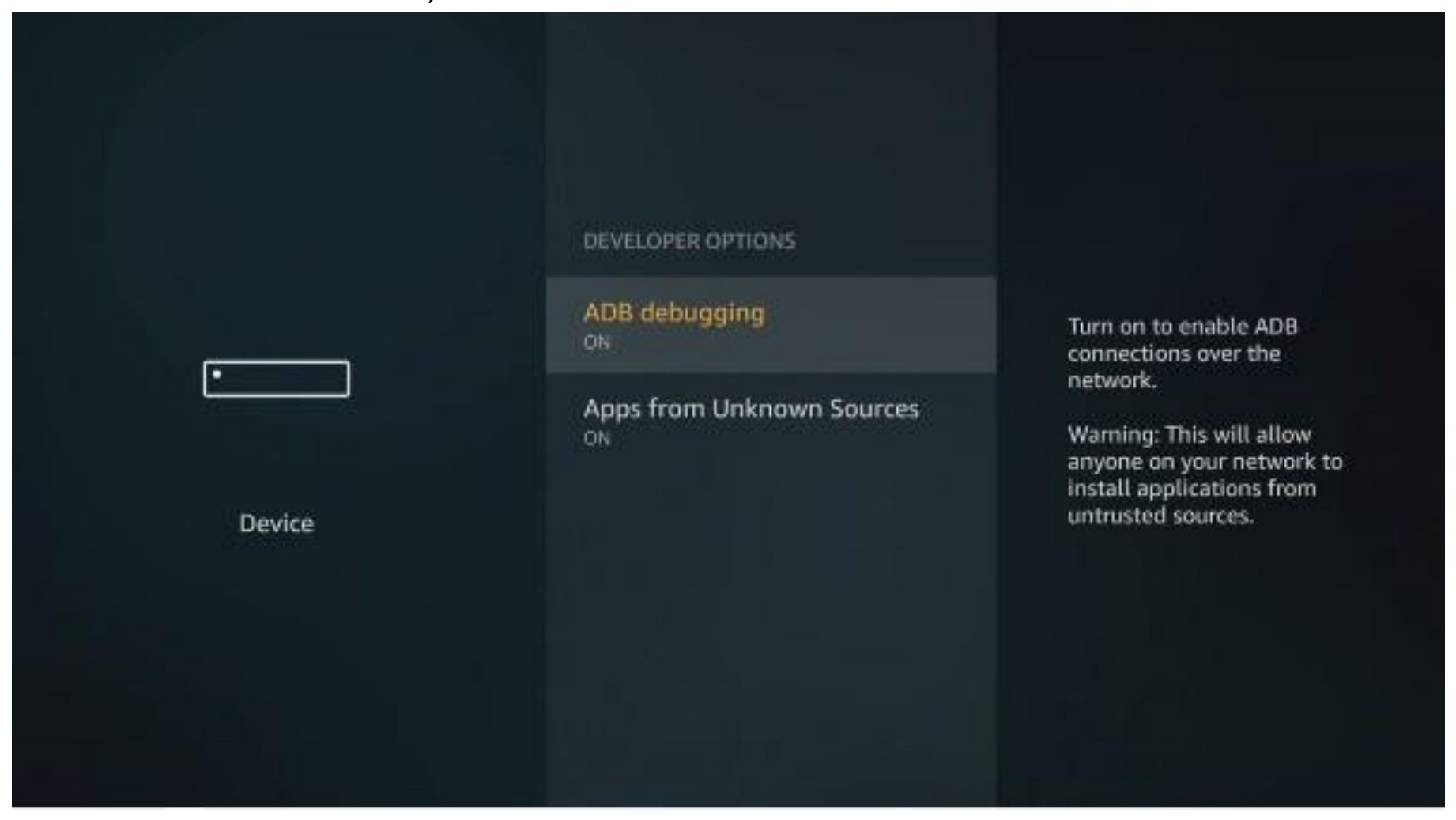
Inside Developer Options, set both of these to ON:
- ADB debugging
- Apps from Unknown Sources
3
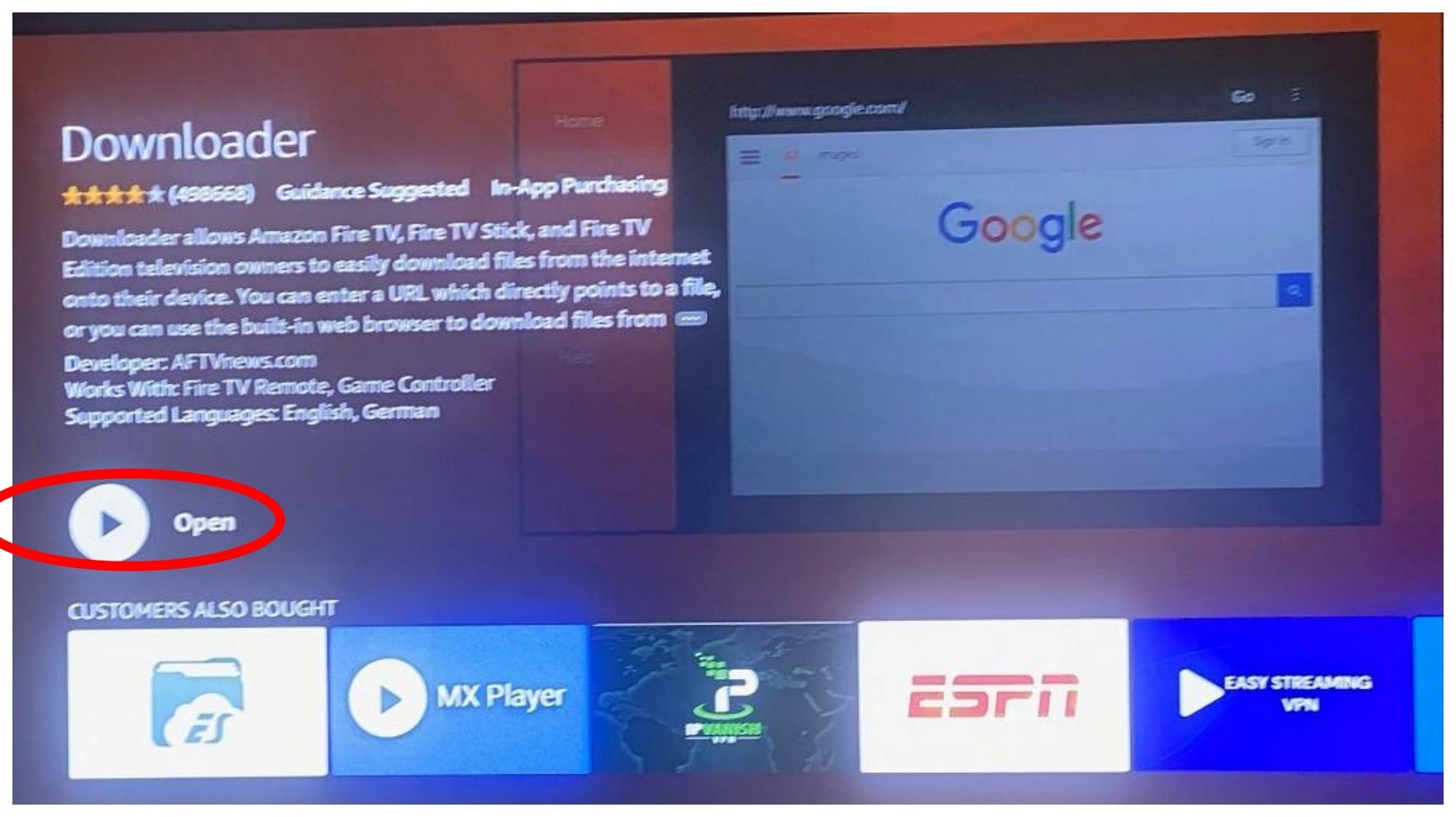
Install the Downloader App
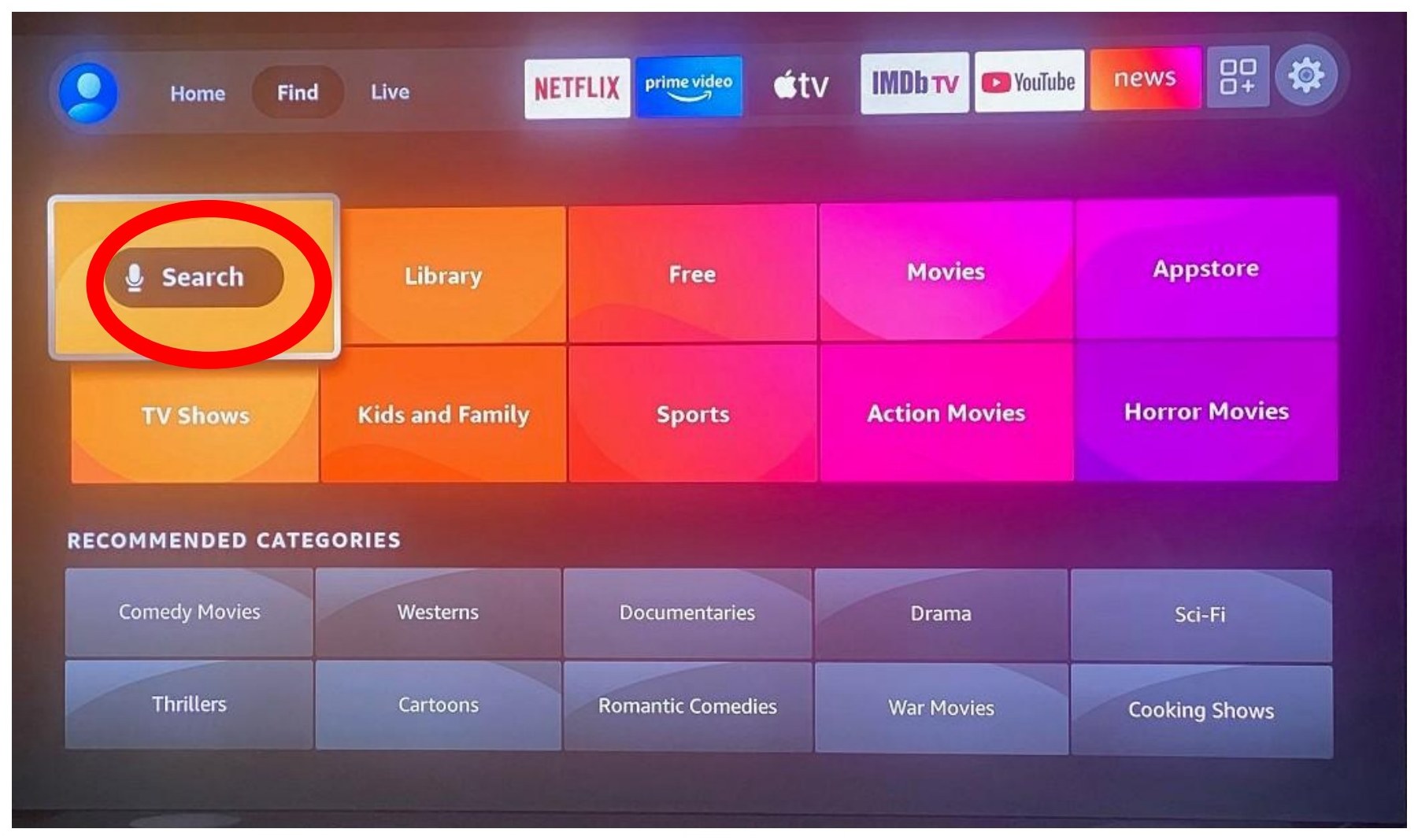
- Press the Home button to return to the home screen.
- Go to Find and then Search.
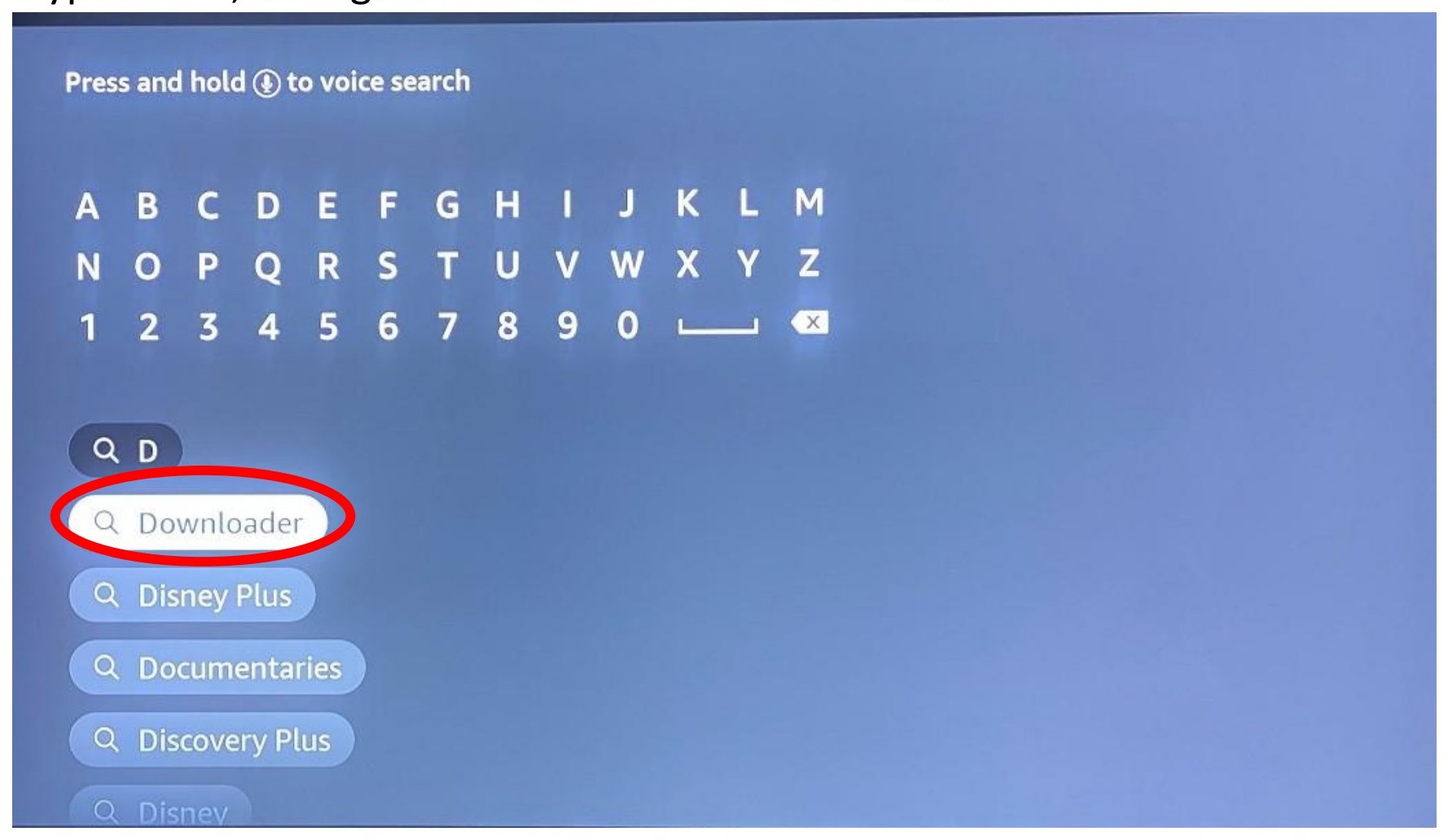
- Type "D", then scroll down and select Downloader.
- Select Get or Download to install it.
- When it finishes, select Open.
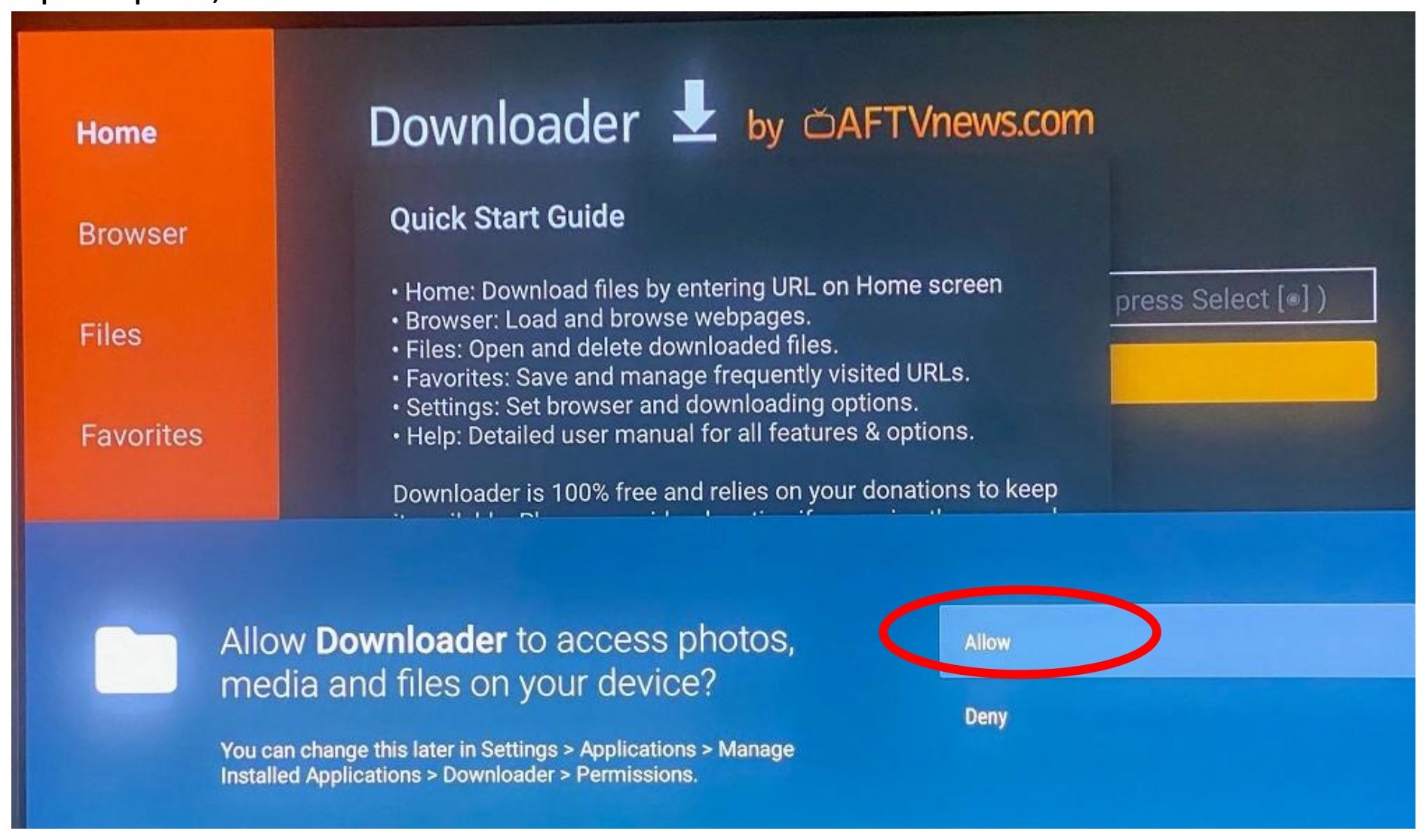
- When prompted, select Allow so Downloader can access files on your device.
4
Download & Install KGTV
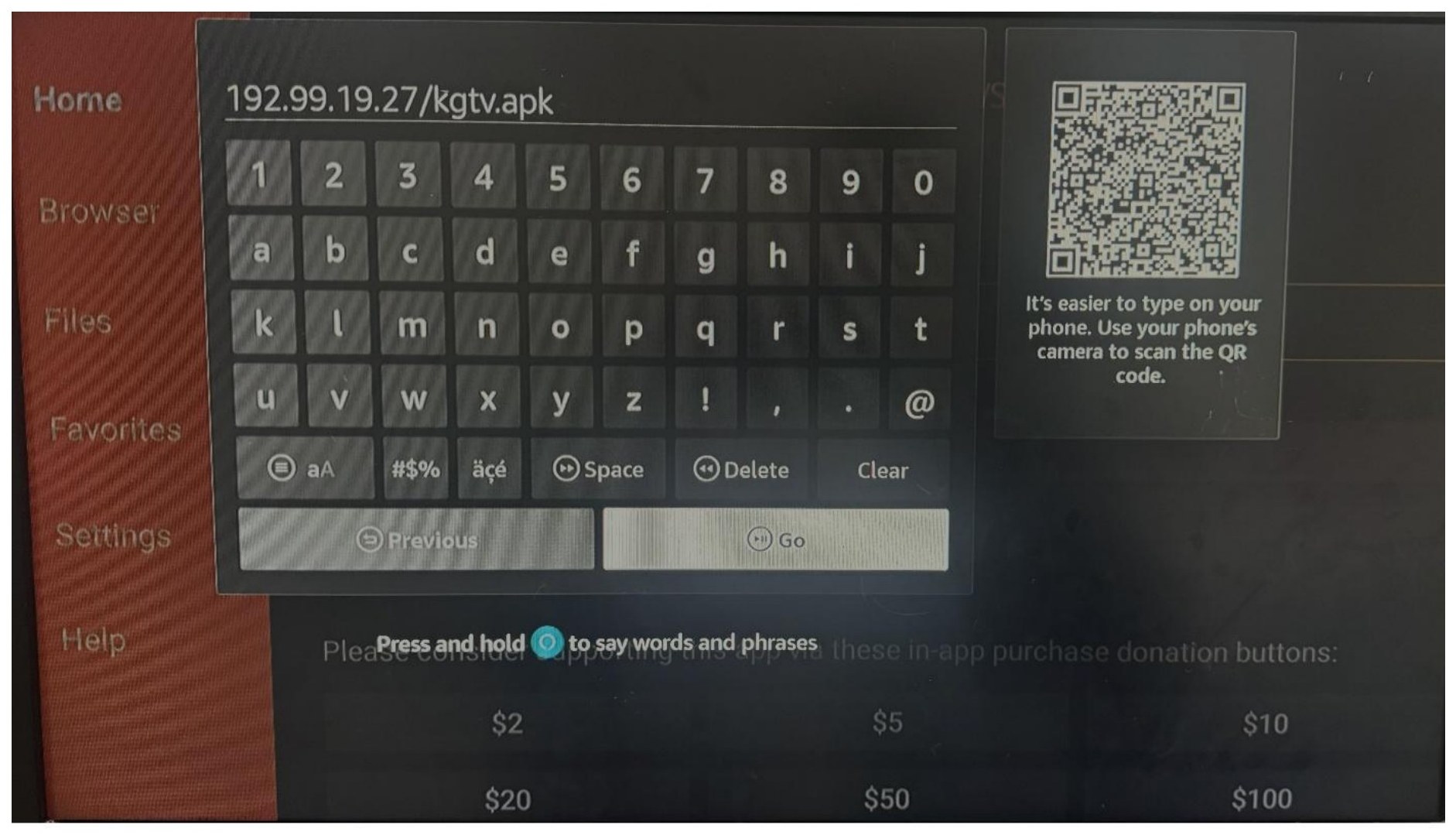
- In the Downloader app, find the "Enter URL" box.
- Type exactly:
192.99.19.27/kgtv.apk - Select Go to start the download.
- When the download finishes, select Install.
- After installation, select Open.
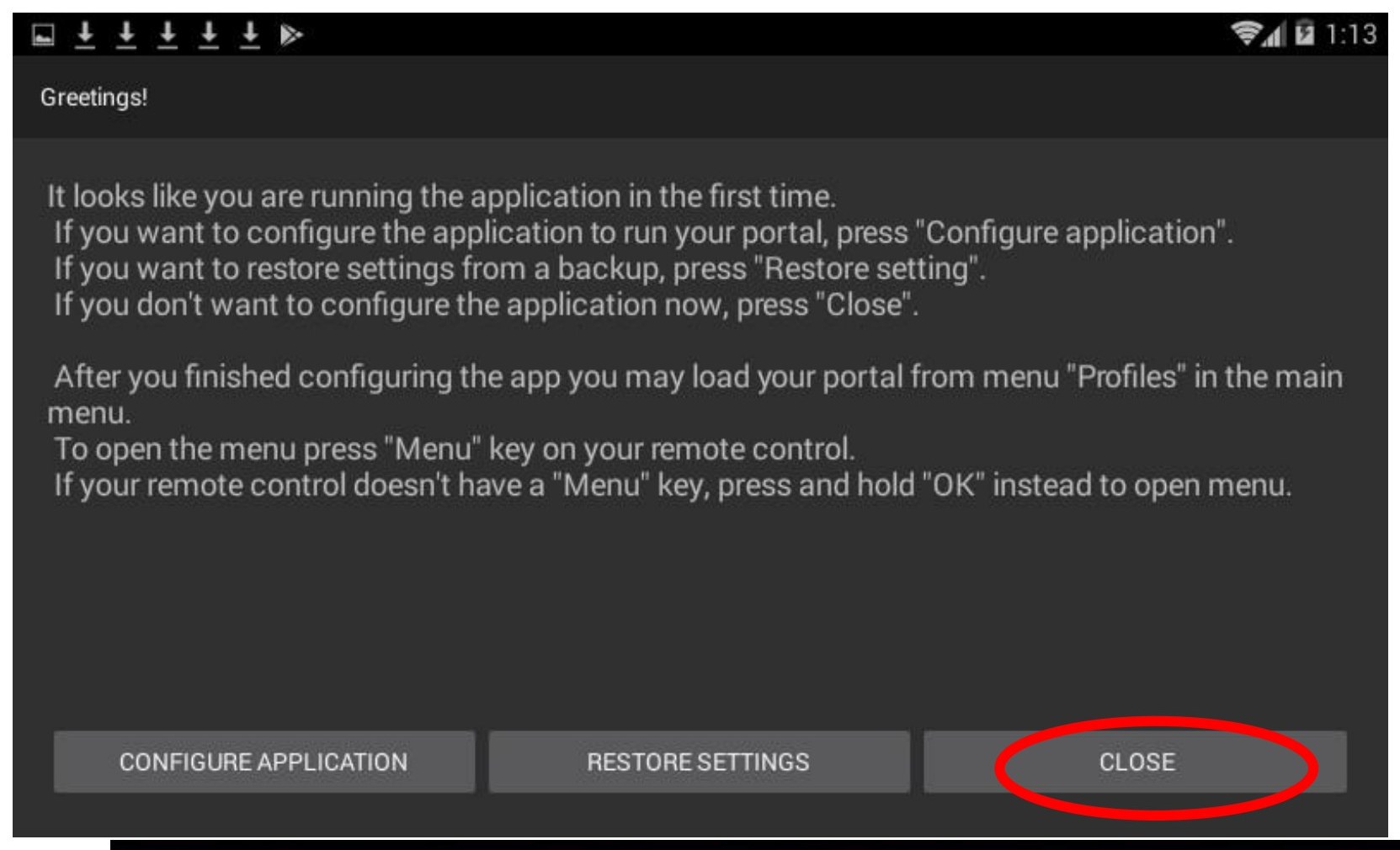
- Select Close on the welcome prompt.
If typing the URL is tricky, use the QR code in Downloader to type it from your phone instead.
5
Activate Your Service
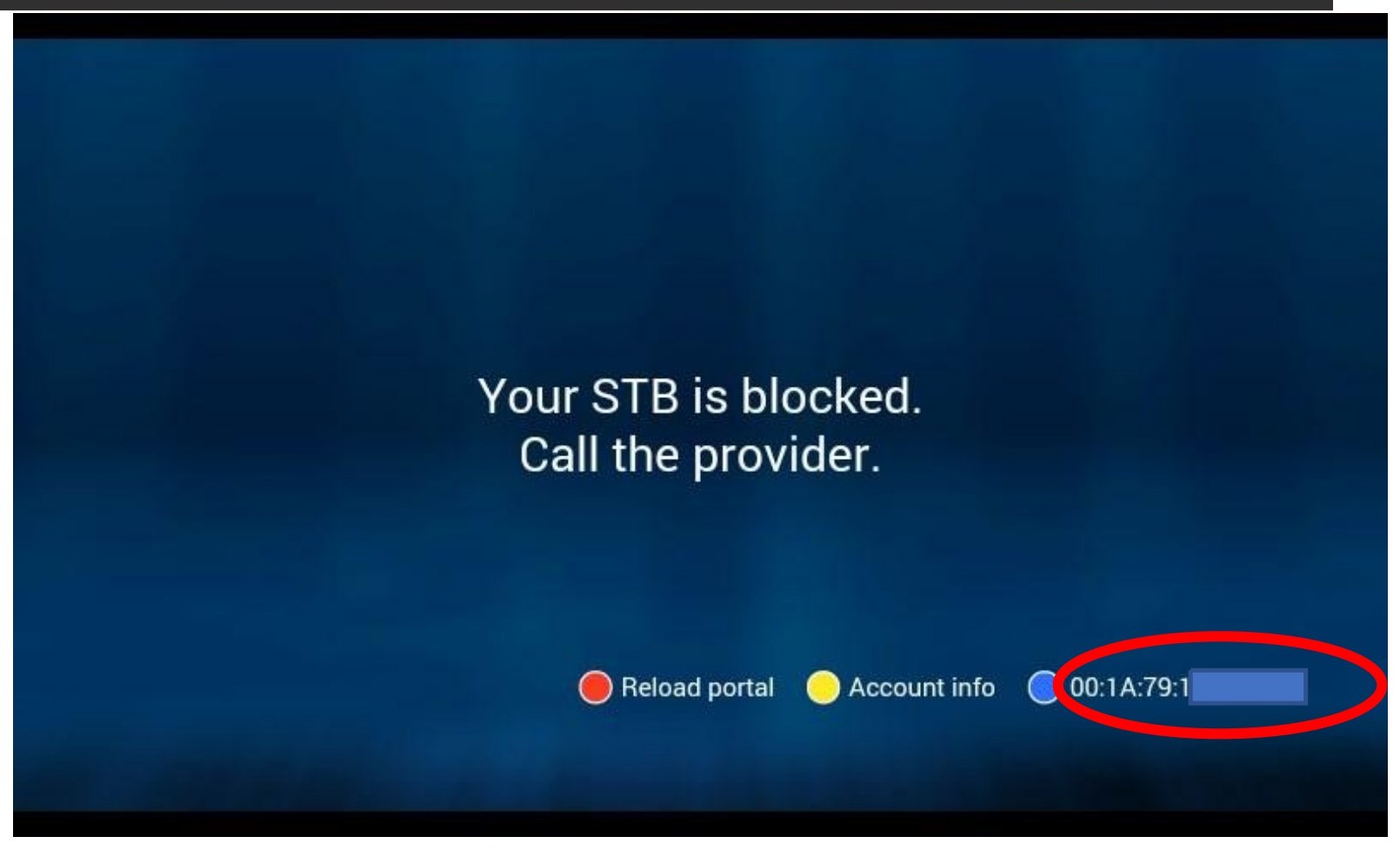
When the app opens for the first time, you will see a message that your device is blocked. Look at the bottom-right corner of the screen — you will see a set of numbers (the MAC / STB ID).
Contact us with those numbers so we can activate your service.
Call (727) 231-0409After activation, press the Menu button (3 lines) on your remote, go to Profile, and press it twice to enter the service.